Search By Model

Showing posts with label Samsung Galaxy Stock Rom. Show all posts

Thursday, September 3, 2026

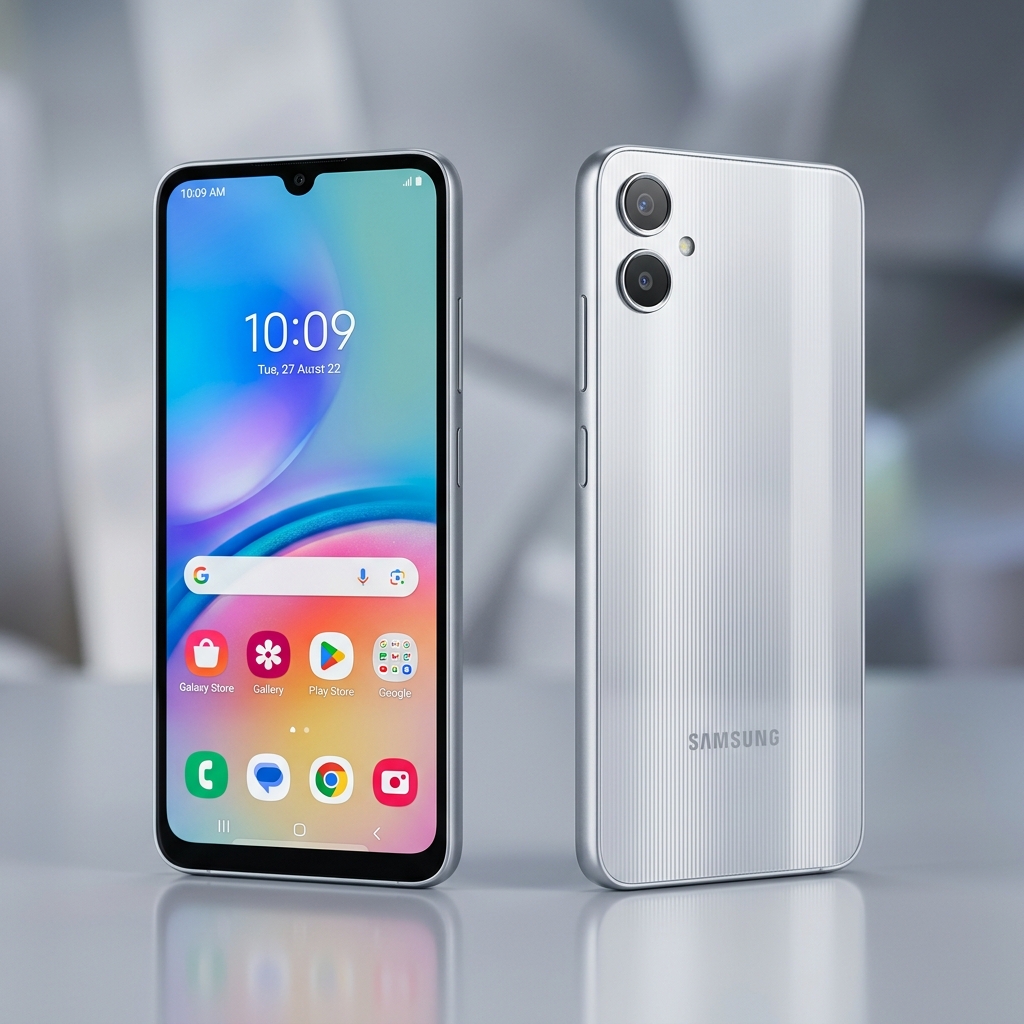
Samsung Galaxy A12 SM-A125F Official Stock Firmware Free Download

Official Stock Firmware & Flash File for Samsung Galaxy A12 SM-A125F Official Stock Firmware Free

Download the verified stock ROM and official flash files for Samsung Galaxy A12 SM-A125F Official Stock Firmware Free. Whether your device is suffering from hard-brick or soft-brick states, stuck on the boot logo, infected with adware/malware, encountering baseband unknown errors, or you simply wish to restore pristine factory stock Android/OS settings, this official package contains all original firmware binaries to restore your phone to 100% working order.
Package Technical Specifications
Device Name Samsung Galaxy A12
Device Model SM-A125F / DS
Chipset MediaTek Helio P35 (MT6765)
Android OS Android 11 (One UI 3.1)
Region / Country United Kingdom / Multi-CSC
Firmware Build A125FXXU1BUI3_A125FOXM1BUI4_MEO
Package Type 4-Files Full Repair Binary (BL, AP, CP, CSC)
File Size 4.68 GB

⚠️ Essential Pre-Flashing Safety Checklist

  • Sufficient Battery Charge: Maintain at least 50% to 70% battery level before starting. A power cut mid-flash can cause hard-brick hardware corruption.
  • Full Data Backup: Installing factory firmware wipes user partitions, including contacts, SMS, applications, and gallery media. Always backup beforehand.
  • OEM USB Data Cable: Use an original or high-spec data cable. Connect directly into the rear USB motherboard ports of desktop PCs rather than front panels or USB hubs.
  • Verify Model Number: Ensure your device's exact model number matches the firmware build. Flashing cross-variant ROMs can result in disabled Wi-Fi, baseband failure, or dead boot.
🛠️ Official Samsung Odin Flashing Tutorial for Samsung Galaxy A12 SM-A125F Official Stock Firmware Free

Follow these verified instructions to install official stock firmware on your Samsung device using the Odin Downloader:

  1. Extract Firmware Archive: Decompress the downloaded zip archive using 7-Zip or WinRAR. You will obtain files starting with BL_, AP_, CP_, and CSC_.
  2. Download & Launch Odin: Download the latest Samsung Odin tool (v3.14 or appropriate build for your Android release) and run Odin3.exe as Administrator.
  3. Load Firmware Files into Odin:
    • Click BL and load the file beginning with BL_.
    • Click AP and select the AP_ file (allow 1-2 minutes for MD5 hash check verification).
    • Click CP and load the file beginning with CP_.
    • Click CSC and select CSC_ for a clean wipe, or HOME_CSC_ if preserving user storage.
  4. Enter Download Mode: Turn off your Samsung phone completely.
    For physical home button models: Hold Volume Down + Home + Power until the teal warning screen appears, then press Volume Up to confirm.
    For modern models: Hold Volume Down + Volume Up and plug in the USB cable connected to PC.
  5. Verify COM Port Handshake: Connect device to PC via original USB cable. Odin's top-left box will illuminate light blue or yellow showing ID:COM [COM#] with an "Added!!" message.
  6. Odin Settings Check: Under the Options tab, ensure only Auto Reboot and F. Reset Time are checked. Never check Re-Partition.
  7. Initiate Flashing: Click Start. The progress bar will advance through system partitions. Once finished, a green PASS! box will appear and your phone will reboot automatically.
High-Speed Direct Firmware Mirrors
🔒 Original Stock Binary • Tested Clean • No Ad Shorteners

❓ Frequently Asked Questions & Troubleshooting

Q: My Samsung Galaxy A12 SM-A125F Official Stock Firmware Free is stuck in a bootloop after flashing. How do I fix it?

A: Boot the phone into Stock Recovery Mode (Power + Volume Up). Use the volume keys to navigate to "Wipe Cache Partition" and confirm. Next, select "Wipe Data / Factory Reset". Reboot the device. The first boot after a full flash may take 5 to 10 minutes.

Q: The flashing tool does not detect my device when connected.

A: Open Windows Device Manager and look for yellow warning icons under Ports (COM & LPT) or Universal Serial Bus controllers. Reinstall the dedicated OEM USB Driver, try a different USB port (preferably USB 2.0), and restart your PC.

Q: Does flashing official stock ROM void my warranty or trip Knox?

A: No. Installing official, untouched manufacturer factory stock firmware does not trip security counters (such as Samsung Knox) and restores your device to genuine manufacturer condition.

Educational & Safe Harbor Notice: All product names, logos, firmware archives, and registered trademarks belong to their respective corporate copyright holders (e.g. Samsung Electronics, Apple Inc., Nokia, Google LLC). Mobile Flash File Store is an educational and technician unbricking resource. We do not host proprietary software on our servers. If you are a copyright owner and wish to request removal of an external link, please contact us via our Contact Page for immediate resolution.

Saturday, February 21, 2015

Samsung SM-G357M PET Peru 4.4.2 KitKat Latest Firmwares

Official Stock Firmware & Flash File for Samsung SM-G357M PET Peru 4.4.2 KitKat Latest

Download the verified stock ROM and official flash files for Samsung SM-G357M PET Peru 4.4.2 KitKat Latest. Whether your device is suffering from hard-brick or soft-brick states, stuck on the boot logo, infected with adware/malware, encountering baseband unknown errors, or you simply wish to restore pristine factory stock Android/OS settings, this official package contains all original firmware binaries to restore your phone to 100% working order.

Package Technical Specifications
Samsung SM G357M PET Peru 4.4.2 KitKat G357MUBU0ANF3
Free Download Samsung SM G357M PET Peru 4.4.2 KitKat G357MUBU0ANF3
Device Name Samsung SM-G357M
Device Model SM-G357M
Date Update 2014-06-23
Region Code PET
Region Country Peru
Firmware Version G357MUBU0ANF3
OS Name KitKat
OS Version 4.4.2

⚠️ Essential Pre-Flashing Safety Checklist

  • Sufficient Battery Charge: Maintain at least 50% to 70% battery level before starting. A power cut mid-flash can cause hard-brick hardware corruption.
  • Full Data Backup: Installing factory firmware wipes user partitions, including contacts, SMS, applications, and gallery media. Always backup beforehand.
  • OEM USB Data Cable: Use an original or high-spec data cable. Connect directly into the rear USB motherboard ports of desktop PCs rather than front panels or USB hubs.
  • Verify Model Number: Ensure your device's exact model number matches the firmware build. Flashing cross-variant ROMs can result in disabled Wi-Fi, baseband failure, or dead boot.
🍎 Apple iOS IPSW Restore Guide for Samsung SM-G357M PET Peru 4.4.2 KitKat Latest

Restore your Apple iPhone, iPad, or iPod to official factory stock iOS using iTunes or macOS Finder:

  1. Prepare Computer & Cable: Ensure you have the latest version of iTunes (Windows) or Finder (macOS Catalina and newer) installed. Use a certified Apple Lightning or USB-C cable.
  2. Disable Find My & iCloud Lock: Ensure "Find My" / Activation Lock is toggled off in device Settings or iCloud.com before restoring.
  3. Connect Device & Trust: Plug your device into the computer and tap "Trust This Computer" on the screen if prompted.
  4. Enter Recovery / DFU Mode (If Bootlooping): If device is frozen or stuck on the Apple logo, enter Recovery Mode:
    iPhone 8 / X / 11 / 12 / 13 / 14 / 15: Press Volume Up, then Volume Down, then hold Side Power button until the computer cable screen appears.
  5. Select IPSW Package:
    On Windows: Hold down the Shift key and click Restore iPhone... in iTunes.
    On Mac: Hold down the Option / Alt key and click Restore iPhone... in Finder.
  6. Execute Restore: Select the downloaded .ipsw file from your disk. iTunes/Finder will extract software, contact Apple servers for TSS signature verification, and perform a factory restore. Do not disconnect until the setup screen appears.
📂 Google Drive Official Firmware Archive

This build is archived in our verified Google Drive cloud repository. Access organized brand folders, flashing tools, and recovery packages directly from our Drive directory, or request an instant build re-upload.

🔒 Verified Google Drive Cloud Storage • Zero Dead Links • Virus Checked

❓ Frequently Asked Questions & Troubleshooting

Q: My Samsung SM-G357M PET Peru 4.4.2 KitKat Latest is stuck in a bootloop after flashing. How do I fix it?

A: Boot the phone into Stock Recovery Mode (Power + Volume Up). Use the volume keys to navigate to "Wipe Cache Partition" and confirm. Next, select "Wipe Data / Factory Reset". Reboot the device. The first boot after a full flash may take 5 to 10 minutes.

Q: The flashing tool does not detect my device when connected.

A: Open Windows Device Manager and look for yellow warning icons under Ports (COM & LPT) or Universal Serial Bus controllers. Reinstall the dedicated OEM USB Driver, try a different USB port (preferably USB 2.0), and restart your PC.

Q: Does flashing official stock ROM void my warranty or trip Knox?

A: No. Installing official, untouched manufacturer factory stock firmware does not trip security counters (such as Samsung Knox) and restores your device to genuine manufacturer condition.

Educational & Safe Harbor Notice: All product names, logos, firmware archives, and registered trademarks belong to their respective corporate copyright holders (e.g. Samsung Electronics, Apple Inc., Nokia, Google LLC). Mobile Flash File Store is an educational and technician unbricking resource. We do not host proprietary software on our servers. If you are a copyright owner and wish to request removal of an external link, please contact us via our Contact Page for immediate resolution.
Friday, February 13, 2015

Samsung Galaxy Ace Style LTE SM-G357FZ OPT Latest Firmwares Portugal

Official Stock Firmware & Flash File for Samsung Galaxy Ace Style LTE SM-G357FZ OPT Latest Firmwares Portugal

Download the verified stock ROM and official flash files for Samsung Galaxy Ace Style LTE SM-G357FZ OPT Latest Firmwares Portugal. Whether your device is suffering from hard-brick or soft-brick states, stuck on the boot logo, infected with adware/malware, encountering baseband unknown errors, or you simply wish to restore pristine factory stock Android/OS settings, this official package contains all original firmware binaries to restore your phone to 100% working order.

Package Technical Specifications
Device Name Samsung Galaxy Ace Style LTE SM-G357FZ
Device Model SM-G357FZ
Date Update 2014-10-14
Region Code OPT
Region Country Portugal (optimus)
Firmware Version G357FZXXU1ANJ3
OS Name KitKat
OS Version 4.4.4

⚠️ Essential Pre-Flashing Safety Checklist

  • Sufficient Battery Charge: Maintain at least 50% to 70% battery level before starting. A power cut mid-flash can cause hard-brick hardware corruption.
  • Full Data Backup: Installing factory firmware wipes user partitions, including contacts, SMS, applications, and gallery media. Always backup beforehand.
  • OEM USB Data Cable: Use an original or high-spec data cable. Connect directly into the rear USB motherboard ports of desktop PCs rather than front panels or USB hubs.
  • Verify Model Number: Ensure your device's exact model number matches the firmware build. Flashing cross-variant ROMs can result in disabled Wi-Fi, baseband failure, or dead boot.
🍎 Apple iOS IPSW Restore Guide for Samsung Galaxy Ace Style LTE SM-G357FZ OPT Latest Firmwares Portugal

Restore your Apple iPhone, iPad, or iPod to official factory stock iOS using iTunes or macOS Finder:

  1. Prepare Computer & Cable: Ensure you have the latest version of iTunes (Windows) or Finder (macOS Catalina and newer) installed. Use a certified Apple Lightning or USB-C cable.
  2. Disable Find My & iCloud Lock: Ensure "Find My" / Activation Lock is toggled off in device Settings or iCloud.com before restoring.
  3. Connect Device & Trust: Plug your device into the computer and tap "Trust This Computer" on the screen if prompted.
  4. Enter Recovery / DFU Mode (If Bootlooping): If device is frozen or stuck on the Apple logo, enter Recovery Mode:
    iPhone 8 / X / 11 / 12 / 13 / 14 / 15: Press Volume Up, then Volume Down, then hold Side Power button until the computer cable screen appears.
  5. Select IPSW Package:
    On Windows: Hold down the Shift key and click Restore iPhone... in iTunes.
    On Mac: Hold down the Option / Alt key and click Restore iPhone... in Finder.
  6. Execute Restore: Select the downloaded .ipsw file from your disk. iTunes/Finder will extract software, contact Apple servers for TSS signature verification, and perform a factory restore. Do not disconnect until the setup screen appears.
📂 Google Drive Official Firmware Archive

This build is archived in our verified Google Drive cloud repository. Access organized brand folders, flashing tools, and recovery packages directly from our Drive directory, or request an instant build re-upload.

🔒 Verified Google Drive Cloud Storage • Zero Dead Links • Virus Checked

❓ Frequently Asked Questions & Troubleshooting

Q: My Samsung Galaxy Ace Style LTE SM-G357FZ OPT Latest Firmwares Portugal is stuck in a bootloop after flashing. How do I fix it?

A: Boot the phone into Stock Recovery Mode (Power + Volume Up). Use the volume keys to navigate to "Wipe Cache Partition" and confirm. Next, select "Wipe Data / Factory Reset". Reboot the device. The first boot after a full flash may take 5 to 10 minutes.

Q: The flashing tool does not detect my device when connected.

A: Open Windows Device Manager and look for yellow warning icons under Ports (COM & LPT) or Universal Serial Bus controllers. Reinstall the dedicated OEM USB Driver, try a different USB port (preferably USB 2.0), and restart your PC.

Q: Does flashing official stock ROM void my warranty or trip Knox?

A: No. Installing official, untouched manufacturer factory stock firmware does not trip security counters (such as Samsung Knox) and restores your device to genuine manufacturer condition.

Educational & Safe Harbor Notice: All product names, logos, firmware archives, and registered trademarks belong to their respective corporate copyright holders (e.g. Samsung Electronics, Apple Inc., Nokia, Google LLC). Mobile Flash File Store is an educational and technician unbricking resource. We do not host proprietary software on our servers. If you are a copyright owner and wish to request removal of an external link, please contact us via our Contact Page for immediate resolution.
Samsung Galaxy Ace Style LTE SM-G357FZ KSA Latetest Firmwares Saudi arabia

Official Stock Firmware & Flash File for Samsung Galaxy Ace Style LTE SM-G357FZ KSA Latetest Firmwares Saudi arabia

Download the verified stock ROM and official flash files for Samsung Galaxy Ace Style LTE SM-G357FZ KSA Latetest Firmwares Saudi arabia. Whether your device is suffering from hard-brick or soft-brick states, stuck on the boot logo, infected with adware/malware, encountering baseband unknown errors, or you simply wish to restore pristine factory stock Android/OS settings, this official package contains all original firmware binaries to restore your phone to 100% working order.

Package Technical Specifications
Device Name Samsung Galaxy Ace Style LTE SM-G357FZ
Device Model SM-G357FZ
Date Update 2014-09-22
Region Code KSA
Region Country Saudi arabia
Firmware Version G357FZXXU1ANI8
OS Name KitKat
OS Version 4.4.4

⚠️ Essential Pre-Flashing Safety Checklist

  • Sufficient Battery Charge: Maintain at least 50% to 70% battery level before starting. A power cut mid-flash can cause hard-brick hardware corruption.
  • Full Data Backup: Installing factory firmware wipes user partitions, including contacts, SMS, applications, and gallery media. Always backup beforehand.
  • OEM USB Data Cable: Use an original or high-spec data cable. Connect directly into the rear USB motherboard ports of desktop PCs rather than front panels or USB hubs.
  • Verify Model Number: Ensure your device's exact model number matches the firmware build. Flashing cross-variant ROMs can result in disabled Wi-Fi, baseband failure, or dead boot.
🍎 Apple iOS IPSW Restore Guide for Samsung Galaxy Ace Style LTE SM-G357FZ KSA Latetest Firmwares Saudi arabia

Restore your Apple iPhone, iPad, or iPod to official factory stock iOS using iTunes or macOS Finder:

  1. Prepare Computer & Cable: Ensure you have the latest version of iTunes (Windows) or Finder (macOS Catalina and newer) installed. Use a certified Apple Lightning or USB-C cable.
  2. Disable Find My & iCloud Lock: Ensure "Find My" / Activation Lock is toggled off in device Settings or iCloud.com before restoring.
  3. Connect Device & Trust: Plug your device into the computer and tap "Trust This Computer" on the screen if prompted.
  4. Enter Recovery / DFU Mode (If Bootlooping): If device is frozen or stuck on the Apple logo, enter Recovery Mode:
    iPhone 8 / X / 11 / 12 / 13 / 14 / 15: Press Volume Up, then Volume Down, then hold Side Power button until the computer cable screen appears.
  5. Select IPSW Package:
    On Windows: Hold down the Shift key and click Restore iPhone... in iTunes.
    On Mac: Hold down the Option / Alt key and click Restore iPhone... in Finder.
  6. Execute Restore: Select the downloaded .ipsw file from your disk. iTunes/Finder will extract software, contact Apple servers for TSS signature verification, and perform a factory restore. Do not disconnect until the setup screen appears.
📂 Google Drive Official Firmware Archive

This build is archived in our verified Google Drive cloud repository. Access organized brand folders, flashing tools, and recovery packages directly from our Drive directory, or request an instant build re-upload.

🔒 Verified Google Drive Cloud Storage • Zero Dead Links • Virus Checked

❓ Frequently Asked Questions & Troubleshooting

Q: My Samsung Galaxy Ace Style LTE SM-G357FZ KSA Latetest Firmwares Saudi arabia is stuck in a bootloop after flashing. How do I fix it?

A: Boot the phone into Stock Recovery Mode (Power + Volume Up). Use the volume keys to navigate to "Wipe Cache Partition" and confirm. Next, select "Wipe Data / Factory Reset". Reboot the device. The first boot after a full flash may take 5 to 10 minutes.

Q: The flashing tool does not detect my device when connected.

A: Open Windows Device Manager and look for yellow warning icons under Ports (COM & LPT) or Universal Serial Bus controllers. Reinstall the dedicated OEM USB Driver, try a different USB port (preferably USB 2.0), and restart your PC.

Q: Does flashing official stock ROM void my warranty or trip Knox?

A: No. Installing official, untouched manufacturer factory stock firmware does not trip security counters (such as Samsung Knox) and restores your device to genuine manufacturer condition.

Educational & Safe Harbor Notice: All product names, logos, firmware archives, and registered trademarks belong to their respective corporate copyright holders (e.g. Samsung Electronics, Apple Inc., Nokia, Google LLC). Mobile Flash File Store is an educational and technician unbricking resource. We do not host proprietary software on our servers. If you are a copyright owner and wish to request removal of an external link, please contact us via our Contact Page for immediate resolution.
Saturday, February 7, 2015

Samsung Galaxy Ace Plus Latin GT-S7500L Latest Stock Rom

Official Stock Firmware & Flash File for Samsung Galaxy Ace Plus Latin GT-S7500L Latest

Download the verified stock ROM and official flash files for Samsung Galaxy Ace Plus Latin GT-S7500L Latest. Whether your device is suffering from hard-brick or soft-brick states, stuck on the boot logo, infected with adware/malware, encountering baseband unknown errors, or you simply wish to restore pristine factory stock Android/OS settings, this official package contains all original firmware binaries to restore your phone to 100% working order.

Package Technical Specifications
Device Name Samsung Galaxy Ace Plus Latin GT-S7500L
Device Model GT-S7500L
Date Update 2012-08-07
Region Code CHE
Region Country Chile (entel pcs)
Firmware Version S7500LVJLH1
OS Name Gignerbread
OS Version 2.3.6

⚠️ Essential Pre-Flashing Safety Checklist

  • Sufficient Battery Charge: Maintain at least 50% to 70% battery level before starting. A power cut mid-flash can cause hard-brick hardware corruption.
  • Full Data Backup: Installing factory firmware wipes user partitions, including contacts, SMS, applications, and gallery media. Always backup beforehand.
  • OEM USB Data Cable: Use an original or high-spec data cable. Connect directly into the rear USB motherboard ports of desktop PCs rather than front panels or USB hubs.
  • Verify Model Number: Ensure your device's exact model number matches the firmware build. Flashing cross-variant ROMs can result in disabled Wi-Fi, baseband failure, or dead boot.
🍎 Apple iOS IPSW Restore Guide for Samsung Galaxy Ace Plus Latin GT-S7500L Latest

Restore your Apple iPhone, iPad, or iPod to official factory stock iOS using iTunes or macOS Finder:

  1. Prepare Computer & Cable: Ensure you have the latest version of iTunes (Windows) or Finder (macOS Catalina and newer) installed. Use a certified Apple Lightning or USB-C cable.
  2. Disable Find My & iCloud Lock: Ensure "Find My" / Activation Lock is toggled off in device Settings or iCloud.com before restoring.
  3. Connect Device & Trust: Plug your device into the computer and tap "Trust This Computer" on the screen if prompted.
  4. Enter Recovery / DFU Mode (If Bootlooping): If device is frozen or stuck on the Apple logo, enter Recovery Mode:
    iPhone 8 / X / 11 / 12 / 13 / 14 / 15: Press Volume Up, then Volume Down, then hold Side Power button until the computer cable screen appears.
  5. Select IPSW Package:
    On Windows: Hold down the Shift key and click Restore iPhone... in iTunes.
    On Mac: Hold down the Option / Alt key and click Restore iPhone... in Finder.
  6. Execute Restore: Select the downloaded .ipsw file from your disk. iTunes/Finder will extract software, contact Apple servers for TSS signature verification, and perform a factory restore. Do not disconnect until the setup screen appears.
📂 Google Drive Official Firmware Archive

This build is archived in our verified Google Drive cloud repository. Access organized brand folders, flashing tools, and recovery packages directly from our Drive directory, or request an instant build re-upload.

🔒 Verified Google Drive Cloud Storage • Zero Dead Links • Virus Checked

❓ Frequently Asked Questions & Troubleshooting

Q: My Samsung Galaxy Ace Plus Latin GT-S7500L Latest is stuck in a bootloop after flashing. How do I fix it?

A: Boot the phone into Stock Recovery Mode (Power + Volume Up). Use the volume keys to navigate to "Wipe Cache Partition" and confirm. Next, select "Wipe Data / Factory Reset". Reboot the device. The first boot after a full flash may take 5 to 10 minutes.

Q: The flashing tool does not detect my device when connected.

A: Open Windows Device Manager and look for yellow warning icons under Ports (COM & LPT) or Universal Serial Bus controllers. Reinstall the dedicated OEM USB Driver, try a different USB port (preferably USB 2.0), and restart your PC.

Q: Does flashing official stock ROM void my warranty or trip Knox?

A: No. Installing official, untouched manufacturer factory stock firmware does not trip security counters (such as Samsung Knox) and restores your device to genuine manufacturer condition.

Educational & Safe Harbor Notice: All product names, logos, firmware archives, and registered trademarks belong to their respective corporate copyright holders (e.g. Samsung Electronics, Apple Inc., Nokia, Google LLC). Mobile Flash File Store is an educational and technician unbricking resource. We do not host proprietary software on our servers. If you are a copyright owner and wish to request removal of an external link, please contact us via our Contact Page for immediate resolution.
Sunday, February 1, 2015

Samsung Galaxy Ace Plus GT-S7500T Latest Stock Rom

Official Stock Firmware & Flash File for Samsung Galaxy Ace Plus GT-S7500T Latest

Download the verified stock ROM and official flash files for Samsung Galaxy Ace Plus GT-S7500T Latest. Whether your device is suffering from hard-brick or soft-brick states, stuck on the boot logo, infected with adware/malware, encountering baseband unknown errors, or you simply wish to restore pristine factory stock Android/OS settings, this official package contains all original firmware binaries to restore your phone to 100% working order.

Package Technical Specifications
Device Name Samsung Galaxy Ace Plus GT-S7500T
Device Model GT-S7500T
Date Update 2013-10-31
Region Code TLP
Region Country Turkey
Firmware Version S7500TDVMJ1
OS Name Gignerbread
OS Version 2.3.6

⚠️ Essential Pre-Flashing Safety Checklist

  • Sufficient Battery Charge: Maintain at least 50% to 70% battery level before starting. A power cut mid-flash can cause hard-brick hardware corruption.
  • Full Data Backup: Installing factory firmware wipes user partitions, including contacts, SMS, applications, and gallery media. Always backup beforehand.
  • OEM USB Data Cable: Use an original or high-spec data cable. Connect directly into the rear USB motherboard ports of desktop PCs rather than front panels or USB hubs.
  • Verify Model Number: Ensure your device's exact model number matches the firmware build. Flashing cross-variant ROMs can result in disabled Wi-Fi, baseband failure, or dead boot.
🍎 Apple iOS IPSW Restore Guide for Samsung Galaxy Ace Plus GT-S7500T Latest

Restore your Apple iPhone, iPad, or iPod to official factory stock iOS using iTunes or macOS Finder:

  1. Prepare Computer & Cable: Ensure you have the latest version of iTunes (Windows) or Finder (macOS Catalina and newer) installed. Use a certified Apple Lightning or USB-C cable.
  2. Disable Find My & iCloud Lock: Ensure "Find My" / Activation Lock is toggled off in device Settings or iCloud.com before restoring.
  3. Connect Device & Trust: Plug your device into the computer and tap "Trust This Computer" on the screen if prompted.
  4. Enter Recovery / DFU Mode (If Bootlooping): If device is frozen or stuck on the Apple logo, enter Recovery Mode:
    iPhone 8 / X / 11 / 12 / 13 / 14 / 15: Press Volume Up, then Volume Down, then hold Side Power button until the computer cable screen appears.
  5. Select IPSW Package:
    On Windows: Hold down the Shift key and click Restore iPhone... in iTunes.
    On Mac: Hold down the Option / Alt key and click Restore iPhone... in Finder.
  6. Execute Restore: Select the downloaded .ipsw file from your disk. iTunes/Finder will extract software, contact Apple servers for TSS signature verification, and perform a factory restore. Do not disconnect until the setup screen appears.
📂 Google Drive Official Firmware Archive

This build is archived in our verified Google Drive cloud repository. Access organized brand folders, flashing tools, and recovery packages directly from our Drive directory, or request an instant build re-upload.

🔒 Verified Google Drive Cloud Storage • Zero Dead Links • Virus Checked

❓ Frequently Asked Questions & Troubleshooting

Q: My Samsung Galaxy Ace Plus GT-S7500T Latest is stuck in a bootloop after flashing. How do I fix it?

A: Boot the phone into Stock Recovery Mode (Power + Volume Up). Use the volume keys to navigate to "Wipe Cache Partition" and confirm. Next, select "Wipe Data / Factory Reset". Reboot the device. The first boot after a full flash may take 5 to 10 minutes.

Q: The flashing tool does not detect my device when connected.

A: Open Windows Device Manager and look for yellow warning icons under Ports (COM & LPT) or Universal Serial Bus controllers. Reinstall the dedicated OEM USB Driver, try a different USB port (preferably USB 2.0), and restart your PC.

Q: Does flashing official stock ROM void my warranty or trip Knox?

A: No. Installing official, untouched manufacturer factory stock firmware does not trip security counters (such as Samsung Knox) and restores your device to genuine manufacturer condition.

Educational & Safe Harbor Notice: All product names, logos, firmware archives, and registered trademarks belong to their respective corporate copyright holders (e.g. Samsung Electronics, Apple Inc., Nokia, Google LLC). Mobile Flash File Store is an educational and technician unbricking resource. We do not host proprietary software on our servers. If you are a copyright owner and wish to request removal of an external link, please contact us via our Contact Page for immediate resolution.
Monday, January 26, 2015

Samsung Galaxy Ace Plus GT-S7500 Latest Firmwares CWT 2.3.6

Official Stock Firmware & Flash File for Samsung Galaxy Ace Plus GT-S7500 Latest Firmwares CWT 2.3.6

Download the verified stock ROM and official flash files for Samsung Galaxy Ace Plus GT-S7500 Latest Firmwares CWT 2.3.6. Whether your device is suffering from hard-brick or soft-brick states, stuck on the boot logo, infected with adware/malware, encountering baseband unknown errors, or you simply wish to restore pristine factory stock Android/OS settings, this official package contains all original firmware binaries to restore your phone to 100% working order.

Package Technical Specifications
Device Name Samsung Galaxy Ace Plus GT-S7500
Device Model GT-S7500
Date Update 2012-08-08
Region Code CWT
Region Country Unknow
Firmware Version S7500ZULH1
OS Name Gignerbread
OS Version 2.3.6

⚠️ Essential Pre-Flashing Safety Checklist

  • Sufficient Battery Charge: Maintain at least 50% to 70% battery level before starting. A power cut mid-flash can cause hard-brick hardware corruption.
  • Full Data Backup: Installing factory firmware wipes user partitions, including contacts, SMS, applications, and gallery media. Always backup beforehand.
  • OEM USB Data Cable: Use an original or high-spec data cable. Connect directly into the rear USB motherboard ports of desktop PCs rather than front panels or USB hubs.
  • Verify Model Number: Ensure your device's exact model number matches the firmware build. Flashing cross-variant ROMs can result in disabled Wi-Fi, baseband failure, or dead boot.
🍎 Apple iOS IPSW Restore Guide for Samsung Galaxy Ace Plus GT-S7500 Latest Firmwares CWT 2.3.6

Restore your Apple iPhone, iPad, or iPod to official factory stock iOS using iTunes or macOS Finder:

  1. Prepare Computer & Cable: Ensure you have the latest version of iTunes (Windows) or Finder (macOS Catalina and newer) installed. Use a certified Apple Lightning or USB-C cable.
  2. Disable Find My & iCloud Lock: Ensure "Find My" / Activation Lock is toggled off in device Settings or iCloud.com before restoring.
  3. Connect Device & Trust: Plug your device into the computer and tap "Trust This Computer" on the screen if prompted.
  4. Enter Recovery / DFU Mode (If Bootlooping): If device is frozen or stuck on the Apple logo, enter Recovery Mode:
    iPhone 8 / X / 11 / 12 / 13 / 14 / 15: Press Volume Up, then Volume Down, then hold Side Power button until the computer cable screen appears.
  5. Select IPSW Package:
    On Windows: Hold down the Shift key and click Restore iPhone... in iTunes.
    On Mac: Hold down the Option / Alt key and click Restore iPhone... in Finder.
  6. Execute Restore: Select the downloaded .ipsw file from your disk. iTunes/Finder will extract software, contact Apple servers for TSS signature verification, and perform a factory restore. Do not disconnect until the setup screen appears.
📂 Google Drive Official Firmware Archive

This build is archived in our verified Google Drive cloud repository. Access organized brand folders, flashing tools, and recovery packages directly from our Drive directory, or request an instant build re-upload.

🔒 Verified Google Drive Cloud Storage • Zero Dead Links • Virus Checked

❓ Frequently Asked Questions & Troubleshooting

Q: My Samsung Galaxy Ace Plus GT-S7500 Latest Firmwares CWT 2.3.6 is stuck in a bootloop after flashing. How do I fix it?

A: Boot the phone into Stock Recovery Mode (Power + Volume Up). Use the volume keys to navigate to "Wipe Cache Partition" and confirm. Next, select "Wipe Data / Factory Reset". Reboot the device. The first boot after a full flash may take 5 to 10 minutes.

Q: The flashing tool does not detect my device when connected.

A: Open Windows Device Manager and look for yellow warning icons under Ports (COM & LPT) or Universal Serial Bus controllers. Reinstall the dedicated OEM USB Driver, try a different USB port (preferably USB 2.0), and restart your PC.

Q: Does flashing official stock ROM void my warranty or trip Knox?

A: No. Installing official, untouched manufacturer factory stock firmware does not trip security counters (such as Samsung Knox) and restores your device to genuine manufacturer condition.

Educational & Safe Harbor Notice: All product names, logos, firmware archives, and registered trademarks belong to their respective corporate copyright holders (e.g. Samsung Electronics, Apple Inc., Nokia, Google LLC). Mobile Flash File Store is an educational and technician unbricking resource. We do not host proprietary software on our servers. If you are a copyright owner and wish to request removal of an external link, please contact us via our Contact Page for immediate resolution.
Followers